
Learning how to secure a WordPress website starts with a backup you can restore. Use this WordPress security checklist to work through updates and access controls, then test the site as a visitor.
Use this guide to learn how to secure a WordPress website you manage or have permission to work on. You’ll need access to the WordPress dashboard. For backups and HTTPS, you may also need your hosting dashboard.
Key Takeaways
- Before you change the site, confirm you can restore both the files and database. Use a private staging copy if your host provides one.
- Prioritise security updates and test the affected feature after each change. For a contact form, check that your test message actually arrives.
- Give each administrator their own account. Test two-factor authentication in a private browser window while you still have a working dashboard session.
- Check HTTPS on your homepage and sign-in page. If the browser shows a certificate warning, pause before entering your password.
1. How to secure a WordPress website: verify your backup restores
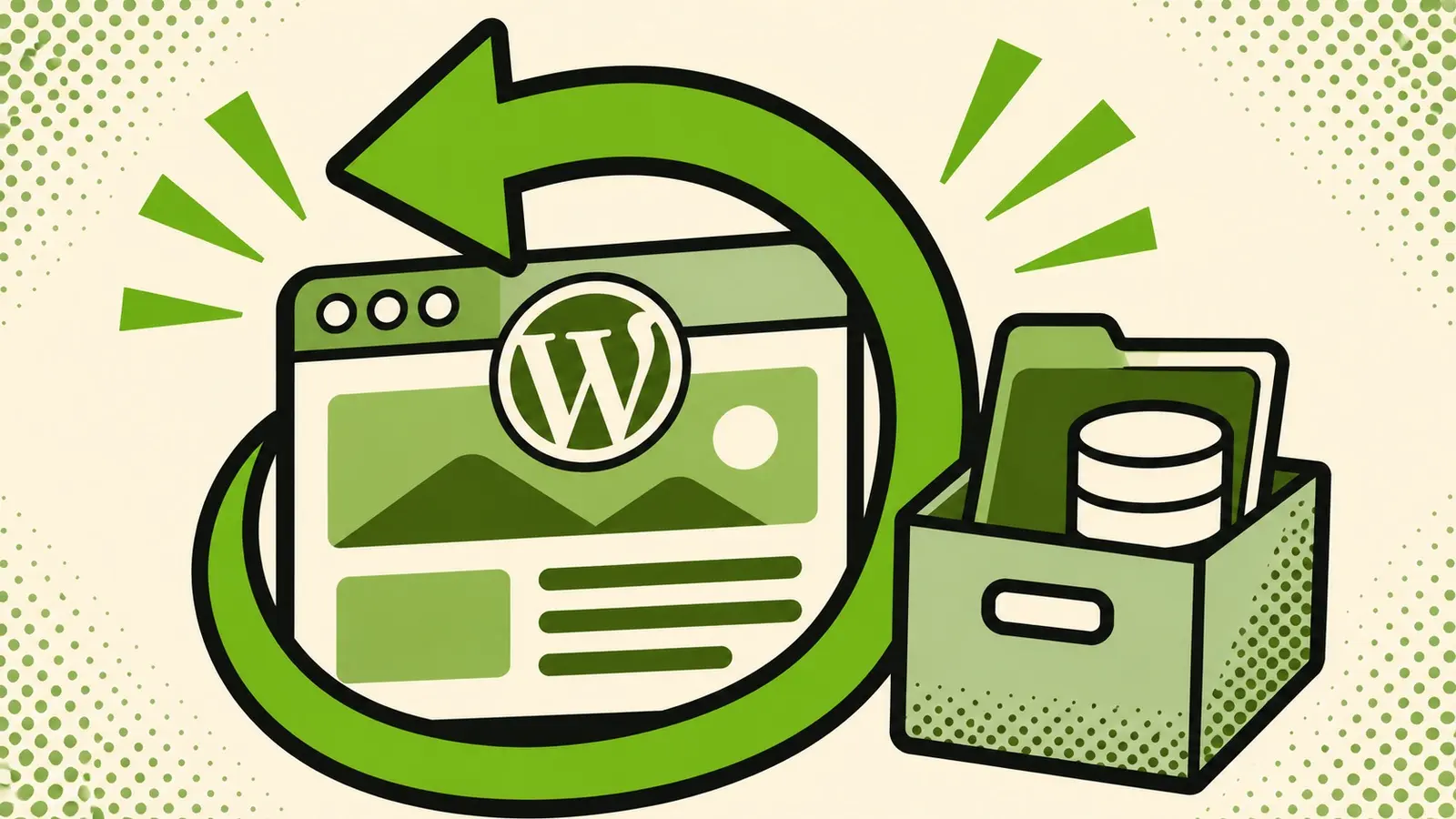
If you’re learning how to secure a WordPress website, start by finding the most recent successful backup in your hosting dashboard or backup plugin. Check that it includes both your site files and the database, where WordPress stores your posts, pages and settings. For a breakdown of what to save, see the WordPress backup guide.

Record the backup date and where to restore it in your WordPress security checklist. If your host offers a private staging site, which is a copy you can test on, try restoring the backup there and open a few pages. If you can’t find a complete backup or work out how to restore it, sort that out before changing the live site.
2. Apply WordPress, plugin and theme updates safely
Another practical step in learning how to secure a WordPress website is reviewing pending security patches. Open Dashboard → Updates to see what’s available for WordPress, your plugins and your themes. Once your backup is ready, apply updates and give priority to security fixes. For a store or a site that depends on a custom plugin, test major or related updates together on a private staging copy when you can.
Knowing how to secure a WordPress website also means testing it after changes. After each update, open an important page and test the feature it affects. Record the result in your WordPress security checklist. For example, submit a test message after updating a form plugin. If something breaks, pause the remaining updates and note what changed. Check with your host before restoring a live backup if you’ve received orders or form submissions since it was made.
3. Remove plugins and themes you no longer use
Open Plugins → Installed Plugins. List the plugins your site depends on in your WordPress security checklist and note what each one does. Review their update history and compatibility notes. Check whether a feature such as your contact form, shop or page builder depends on the plugin. If you’re unsure, deactivate it on a private staging copy and test those features before removing it from the live site.
Your WordPress security checklist should also include themes: check Appearance → Themes as well. Keep your active theme and its parent if you use a child theme. You can also keep a current fallback theme for troubleshooting. If you’re unsure what an item does, find out before removing it.
4. Review who has administrator access
Anyone learning how to secure a WordPress website should check who can access the dashboard. In Users → All Users, look at the accounts with the Administrator role. Each should belong to someone you recognize who needs to manage the site. On a standard single-site WordPress install, someone who manages articles and pages can often work as an Editor.
WordPress website security also depends on maintaining the right access. Before removing a confirmed old account, make sure you keep any content that should stay with the site. If you find an administrator you don’t recognize and suspect a break-in, record what you found and contact your host for help investigating.
How to secure a WordPress website after a handover
Before a handover ends, confirm the new owner can sign in to both WordPress and the hosting account. Check that password resets and security alerts reach an address they control. Agree on who can restore the site before you remove an old administrator’s access.
5. Strengthen WordPress security with two-factor authentication
Add account protection to your WordPress security checklist: give each administrator a separate account and a unique password. Set up two-factor authentication (2FA) where your WordPress login is managed, such as through a compatible plugin or your sign-in provider. It adds a second check, such as a code from an authenticator app. You can compare options in the Cyber.gov.au guide to setting up multi-factor authentication.

A WordPress security checklist should include confirming that login protection really works. Keep your current dashboard session open while you test a fresh sign-in in another browser or a new private session. Store any recovery codes somewhere secure outside WordPress. If the second check fails, use the original session to review the setup before signing out. Before requiring 2FA for other administrators, confirm how each person can recover access and record the process in your WordPress security checklist.
A password manager such as Proton Pass can help you generate and store a unique password for each administrator account. The free plan covers that.
Proton Unlimited bundles Proton VPN, Proton Mail, Proton Drive, and Proton Pass under one subscription. If you already use Proton services in your lab or daily workflow, the bundle is usually the smarter move.
6. Check that the site and dashboard use HTTPS
The HTTPS step of your WordPress security checklist begins in the browser. Open your homepage and sign-in page using https://. Check that the address shows the right domain and that the browser opens both pages without a certificate warning. If you see a warning, pause before entering your password and ask your host to check the certificate.
An important WordPress website security check is whether your host redirects old HTTP addresses to HTTPS. Keep the HTTPS item open in your WordPress security checklist if you see a redirect loop or the browser reports insecure content. Ask your host to identify the cause before you change the WordPress addresses.
7. Test the site as a visitor
Knowing how to secure a WordPress website also means testing what visitors experience. Open the site on your phone in a private browser session. Walk through the steps a visitor would take. If those pages feel slow to load, my WordPress speed optimization guide explains seven practical improvements you can test.
- Open the homepage and use the main menu to reach an important page.
- Send a test message through your contact form if the site has one.
- Check the receiving inbox. Look there even if the form displays a success message.
Back in WordPress, open Tools → Site Health and read any security-related critical issues. Date your WordPress security checklist and record which tests need a follow-up. If a visitor can’t use a key feature after a change, resolve that issue before moving on.

Frequently asked questions
Do I need a security plugin for WordPress?
For stronger WordPress security, a security plugin can add features such as two-factor authentication or security alerts. Check what your host or sign-in provider already offers and pick a plugin that fills a gap. Keep updates and restorable backups on your checklist.
How often should I back up my WordPress site?
Base your schedule on how often your site changes and how much data you could afford to lose. A shop that takes orders daily needs more frequent backups than a portfolio that rarely changes. Take a fresh backup before a major update and test a restore on a private staging site when you can.
How often should I check for WordPress updates?
Set a regular reminder to check for WordPress, plugin and theme updates, and prioritise security fixes. My WordPress maintenance checklist shows how to make these checks part of a routine. After updating, test the feature the update affects. For example, send a test message after updating your contact form plugin.
How does HTTPS protect my WordPress site?
HTTPS encrypts the connection between a visitor’s browser and your site. Check that it works on both your public pages and the dashboard. Keep your software updated and protect administrator accounts as part of the same security routine.
Get a free initial WordPress security check
If you’re unsure how to secure a WordPress website with your current setup, contact me for a free initial WordPress security check. Share your website address and tell me what you’d like checked. Keep passwords and verification codes private.