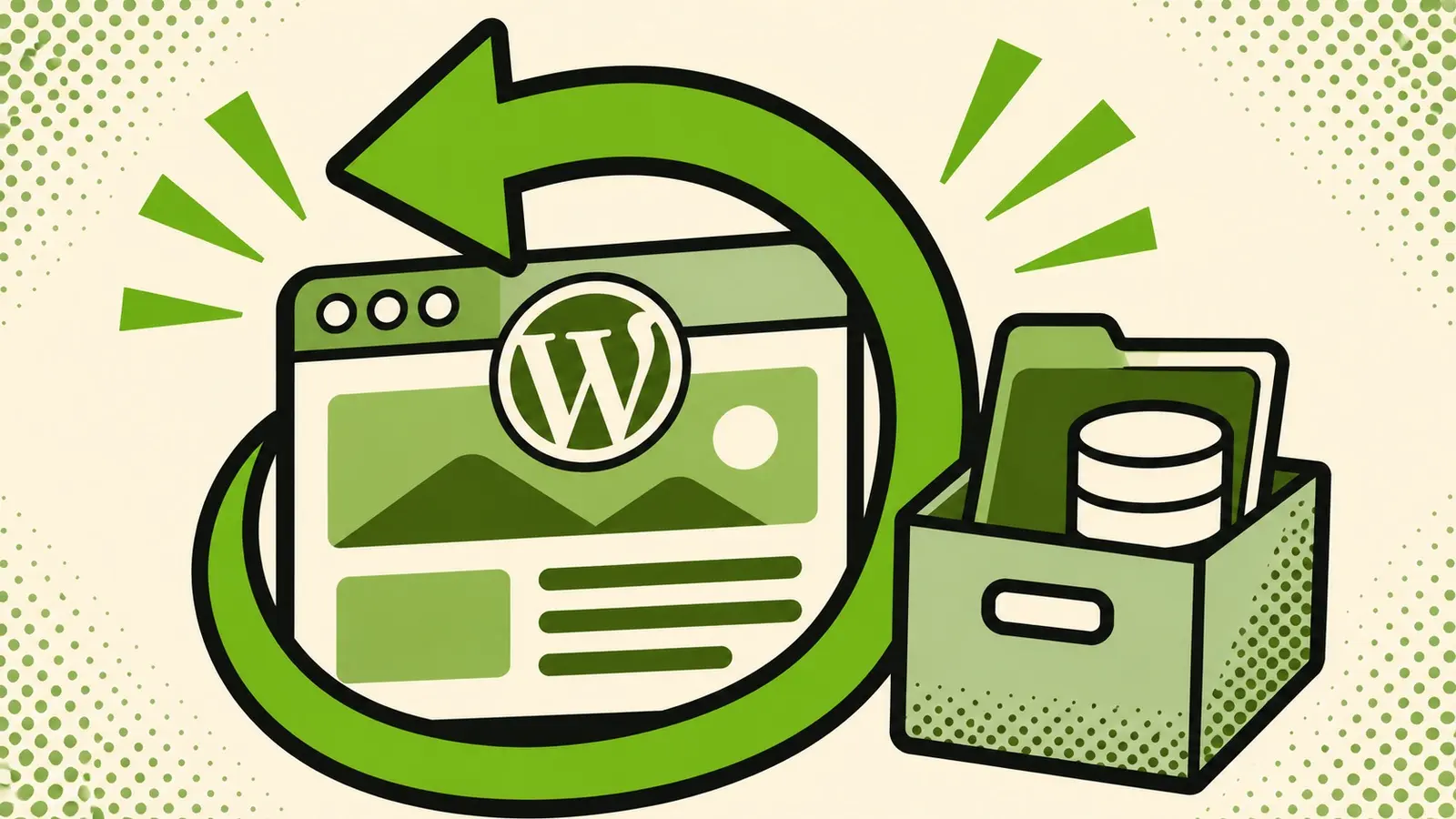

Need to restore a WordPress backup after a failed update, a missing page or an unexpected site error? Start by finding a trustworthy restore point from before the problem appeared. Then check what it contains and what newer information you might lose. Restoring the wrong snapshot can make a difficult situation worse.
This guide explains how to restore a WordPress backup on a self-hosted site using your hosting provider, UpdraftPlus or, when necessary, a manual method. You do not need to be a developer to understand the safer options. If your site handles orders, bookings, accounts or form submissions, pay special attention to the data-loss warnings before restoring anything.
Key Takeaways
- A full WordPress recovery usually needs both the database and site files, not just a folder of images.
- A restore returns data to an earlier point in time. New orders, accounts, messages and edits may disappear.
- Host backups and a backup plugin with a restore wizard are usually more approachable than a manual database import.
- Test the backup on a private staging site where possible instead of overwriting a working live site.
- After restoring, test real visitor actions, not only whether your homepage loads.
What does it mean to restore a WordPress backup?
When you restore a WordPress backup, you use a previously saved copy to replace damaged or missing parts of your website. It is not quite the same as undoing a WordPress update. Depending on your backup and the options you select, you may replace the database, plugins, themes, uploaded media, configuration files or a combination of these.
WordPress has two major parts: the database contains posts, pages, users and many settings, while files provide themes, plugins, media uploads and the software used to run the site. The official WordPress backup guidance explains why a complete recovery typically needs both parts.
Database. It stores content, user accounts, settings and, depending on the plugin, some form submissions. A database restore can overwrite changes or transactions made after the backup.
Site files. These include themes, plugins, uploads and other files. Missing or mismatched files can break the site.
Configuration. This includes wp-config.php and sometimes server-specific rules. These settings must match your current hosting and database setup.
Not every backup plugin includes WordPress core files or server configuration by default. Check the actual contents of your backup instead of assuming the word “complete” always means the same thing.

6 safety checks before you restore a WordPress backup
1. Work out when the problem began
Identify the last time the website worked normally. Did it fail immediately after a plugin update, after editing a theme, or during a hosting outage? Choose a restore point from before the problem occurred. A snapshot made after the error may simply restore the same error.
2. Check the backup date and contents
Look for a successful backup record and confirm that it includes the components you need: database, plugins, themes, uploads and any additional files relevant to your site. Compare the time of the restore point with posts or visitor submissions created since then. A recent timestamp is helpful, but a complete and usable backup matters more.
3. Preserve what exists now, if possible
Even a malfunctioning site may contain valuable new data. When it is technically safe, create a separate backup of the current files and database before overwriting anything. If you cannot reach WordPress, ask the hosting provider whether they can preserve the current state. Do not replace the only surviving copy of your website without understanding the consequences.
4. Identify any live business data at risk
A shop may have received new orders or payments since the chosen backup. A membership site may have new accounts. Contact-form plugins may store entries in the database. A database restore can remove those changes. For a live business website, plan how to preserve and reconcile critical records before starting a full database restore.
5. Choose a safe place to test
If your host offers staging, restore a copy there first. Make sure the staging environment is private and cannot send real customer emails or process payments. Test the recovered copy, then decide what needs changing on the live site. Without staging, schedule a careful maintenance window and make sure you can still access a backup if the attempt fails.
6. Check which accounts and tools you can access
You may need WordPress admin access, the host control panel, a remote backup location, SFTP or a database management tool. Confirm you are working on the correct website and database. Keep credentials in a password manager. Never email passwords or temporary login codes when asking for help.
Which WordPress restore method should you use?
Your host has restore points. Use the hosting control panel. Check whether the restore will replace the entire site or only the database.
You can still access WordPress admin. Use the backup plugin that created the copy. Confirm the restore point and select the components you want to recover.
You can’t access the dashboard. Use your host’s recovery tools or get help with a manual restore. The plugin’s restore controls may be inaccessible.
Whenever possible, use the original backup tool to restore a WordPress backup. A file produced by one plugin is not always directly compatible with another plugin. Also distinguish restoring to the same site and URL from migrating to a new domain or server; moving a site can require additional database and configuration changes.
How to restore a WordPress backup with UpdraftPlus
UpdraftPlus is one example of a backup plugin with a guided restore process. Menus may differ slightly by version. Its official WordPress restore tutorial covers restoring to the same site and URL. If your backup was made with another tool, follow that tool’s instructions instead.
Step 1 — Open the existing backups list
Sign in to the dashboard and open Settings → UpdraftPlus Backups. Find the Existing Backups area, usually under the backup-and-restore section. Check the date of the backup you intend to use. If it is missing, the plugin may let you rescan connected remote storage or upload the original backup files from your computer.
Step 2 — Choose the restore point and components
Select Restore next to the correct backup. The wizard normally offers categories such as database, plugins, themes, uploads and other files. Select only the parts you intend to replace. Restoring just a damaged plugin may be sufficient for an isolated problem, but restoring mismatched components can create new issues. A database restore deserves particular care because it can undo newer records.
Step 3 — Read the warning and confirm
Check the selected components and date one last time. Read any warnings and continue only after you understand what the wizard will overwrite. Let the operation finish; do not assume it has failed merely because it takes longer than expected. If an error appears, save the exact message. Use a resume option only if the tool specifically offers one.
Step 4 — Sign in again and test the restored site
After a database restore, login details may reflect the older backup. Sign in if needed, then check the site as a regular visitor. Look at pages, images, forms, language versions and account permissions. If something is missing, investigate the affected component instead of immediately running another full restore.
Restore from a hosting-provider backup
Many hosting services let you restore a WordPress backup from the hosting control panel. Look for a section called Backups, Restore or something similar. The exact location varies by provider and plan. Some hosts allow separate database and file restoration; others restore a larger account snapshot. Verify which site is selected before proceeding.
- Sign in to your hosting dashboard and select the correct website.
- Choose a restore point from before the fault.
- Check whether the process will replace files, the database or both.
- Ask support if you are unsure which recent records could be lost.
- Preserve the current state where possible, then start the restore.
- Wait for confirmation and test the site before returning it to normal use.
Host recovery can be especially useful when WordPress itself is unavailable. It can also be deceptively broad: a full-site restore might undo a recently edited contact page or changed permissions. Treat it as a data recovery operation, not simply a visual reset.
What if you cannot access WordPress admin?
Not being able to log in does not necessarily mean your backups are gone. Start with your host’s recovery tools or support team. Ask whether they can create a current snapshot and whether they can recover a specific website without touching other sites on the account.
If you still have a backup on separate storage, rebuilding a compatible WordPress installation and importing the backup may be possible. That requires careful handling of the database, site files and server settings. Avoid setting up a fresh installation over the existing one until you know exactly which database and files it will use. For beginners, this is a good point to request help rather than experiment on a live production website.
Manual WordPress restore: files and database
You may need to restore a WordPress backup manually if you can’t access the dashboard and your host has no suitable restore point. It is also easier to make a serious mistake. Use these sections to understand the process and decide whether you need someone experienced with server administration.
Restore the right files to the right directory
Using SFTP or the host’s file manager, identify the correct document root and existing WordPress installation. The wp-content directory generally contains your plugins, themes and uploads. The wp-config.php file contains database connection settings and other important configuration. Make copies before replacing files and confirm that other websites on the account will not be affected. The official WordPress files backup guide identifies the parts involved.
Restore the database only when the destination is certain
Database backups are often SQL files, sometimes compressed. Importing one into a populated database may replace or conflict with existing tables. Confirm the database name, table prefix and whether it is shared with other applications. The official WordPress database backup and restoration instructions describe common import approaches. Do not run unfamiliar SQL commands or drop tables on a live database while guessing.
Verify configuration and URLs
After restoring, check that the database settings in wp-config.php match the host’s actual database credentials. Restoring to the same URL generally does not require a domain replacement. Moving to another domain or host is different: WordPress stores URLs in multiple places, and careless text replacement can damage serialized data. Use WordPress-aware migration tools when those changes are required.
Common WordPress backup restore mistakes
- Choosing the wrong restore date: a snapshot made after the problem may bring the problem back.
- Restoring files but not the database: missing content and settings will not automatically reappear.
- Forgetting recent activity: a database restore may remove new orders, accounts or messages.
- Trusting an unknown backup: verify where it came from, especially after a suspected compromise.
- Assuming a restore fixes a hack: an infected backup or unpatched weakness can reintroduce the problem.
- Skipping the final checks: a working homepage does not prove forms and checkout still work.
If you suspect malware or an account breach, restoration is only one part of recovery. Investigate the cause, review access and update affected software. For the broader precautions, see our guide on securing a WordPress website. Avoid random “one-click fix” plugins when the cause is unknown.
Your post-restore checklist
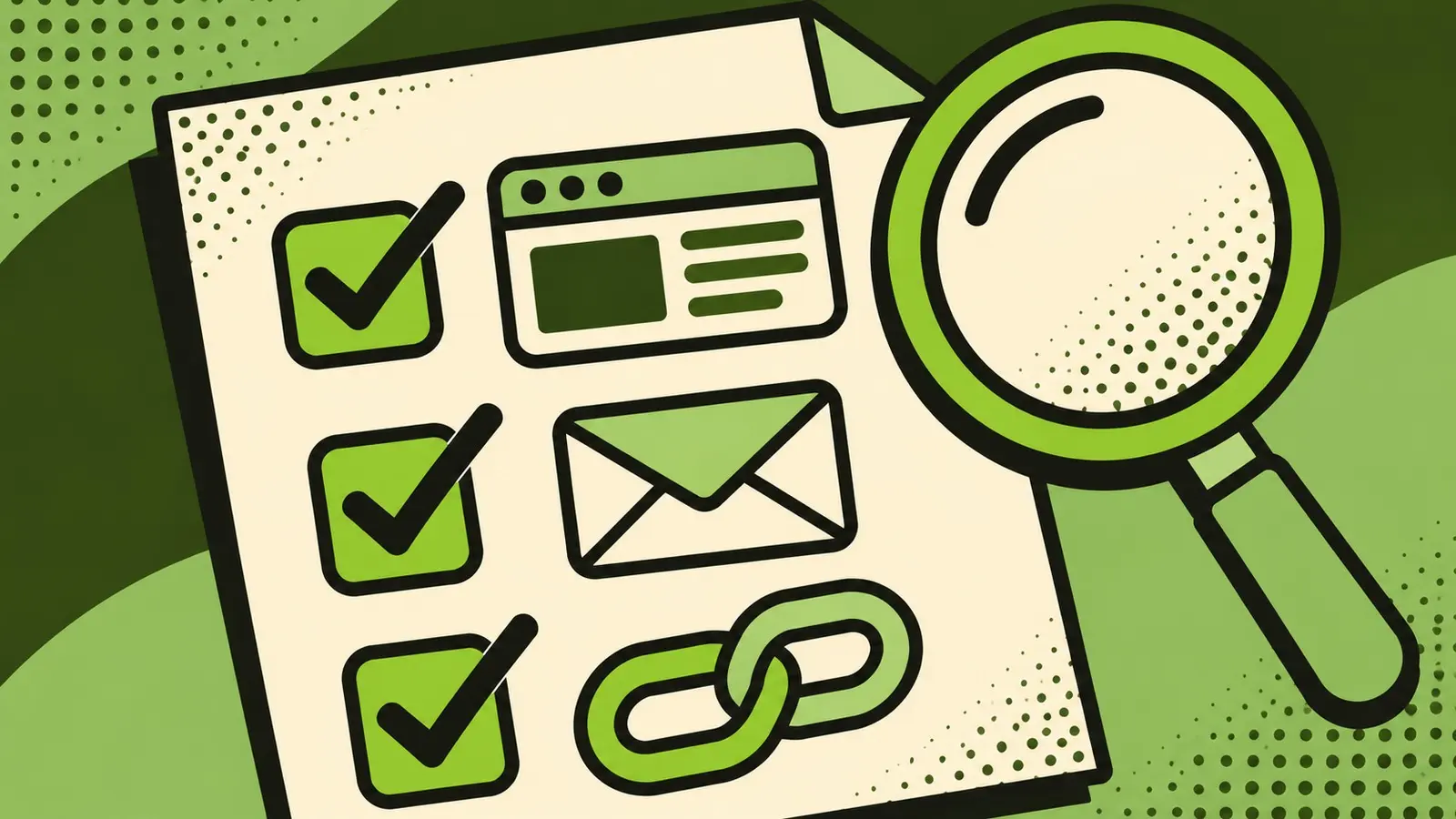
- Open the homepage and two or three important pages while signed out.
- Check media, downloadable files and page layout.
- Test the menu, internal links and important URLs.
- Send a safe contact-form test and verify delivery.
- Review WordPress users and administrator permissions.
- Confirm backup and security tools are working as intended.
- For multilingual sites, open the language versions and follow their links.
- For shops or booking sites, reconcile records and run safe tests without real payments.
- Once the site is stable, make a fresh complete backup and keep a copy off-site.
Keep a simple recovery note: the date of the restore point, the components restored, any error messages and the results of your tests. Include those notes in your regular WordPress maintenance checklist. A little documentation now saves confusion next time.

Frequently asked questions
Can I restore a WordPress site without a plugin?
Yes, if your host provides restore points. Manual recovery from site files and a database export is another option, but it requires more technical care and certainty about the destination website.
Will I lose posts or orders after restoring?
Possibly. A database restore can remove content and transactions created after the backup. Preserve current records where possible and seek help reconciling newer orders or account changes.
Can I restore just one broken plugin?
Sometimes. Some backup tools allow component-level restores. Verify the cause first, because a partial restore may not work if the plugin’s files and saved database settings no longer match.
What if I do not have a usable backup?
Do not overwrite the existing site with a new installation. Ask your host about older snapshots and whether the current files and database can be preserved. Complete recovery cannot be guaranteed without a backup.
Does restoring a hacked site make it safe again?
Not automatically. The same vulnerability, infected files or compromised credentials might remain. Investigate the incident, restore from a trusted source and review updates and access.
Start with the safest available backup
To restore a WordPress backup safely, choose the right snapshot, protect newer information and test the result carefully. Start with the backup tools already available through your hosting account or WordPress plugin. If you cannot tell what will be overwritten, do not press Restore yet.
Not sure how to proceed? Contact WebMoxx for a free, no-obligation initial WordPress check. Explain what happened and when; never share passwords, one-time login codes or complete private backup archives through a contact form.